VetFolio offers the option to change the playback speed on most of our content so you can listen at your preferred pace. Instructions vary depending on the type of content you are viewing:
1. Speed Settings for Courses
Courses with a teal playback bar: All videos in this format support speed adjustments. To change the speed, click the gear icon, select speed, and choose your desired speed option.
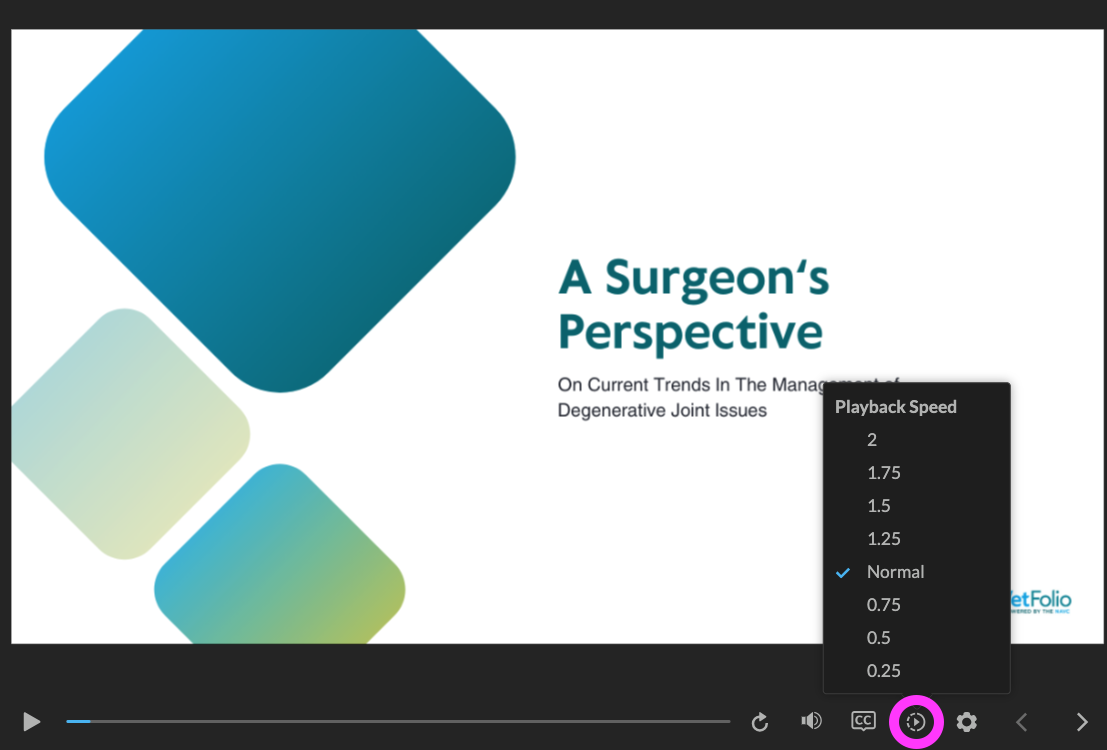
Courses with a black playback console: Newer content of this type includes speed adjustments, and older courses are slowly being updated to include this option. To change the speed, click the play button, and the speed options will appear automatically.

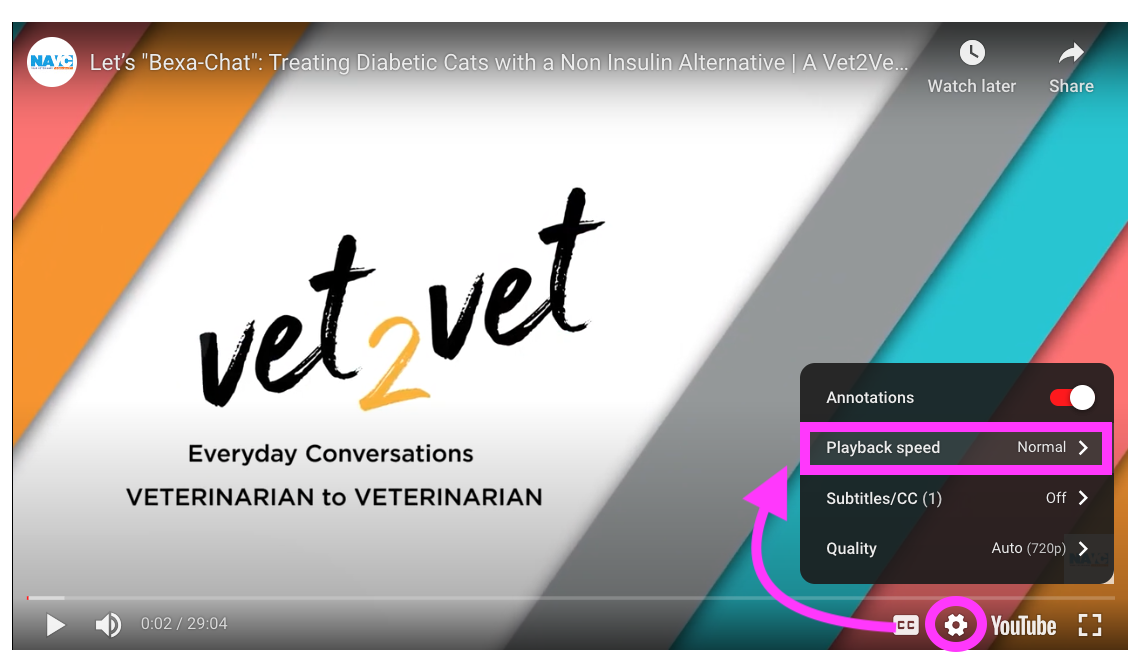
3. Speed Settings for PodcastsPodcasts are currently the only content type that cannot be sped up directly on the VetFolio website. However, you can easily listen and adjust the playback speed by opening the podcast in an external listening app such as Apple Podcasts or Spotify.
4. Reading Time for Articles & ProceedingsWhile written text like articles and proceedings do not have audio playback, you can view an approximate read time in two places:
On the detail page under the "More Information" tab before you open the content.
Once you open the article, just below the title.
